
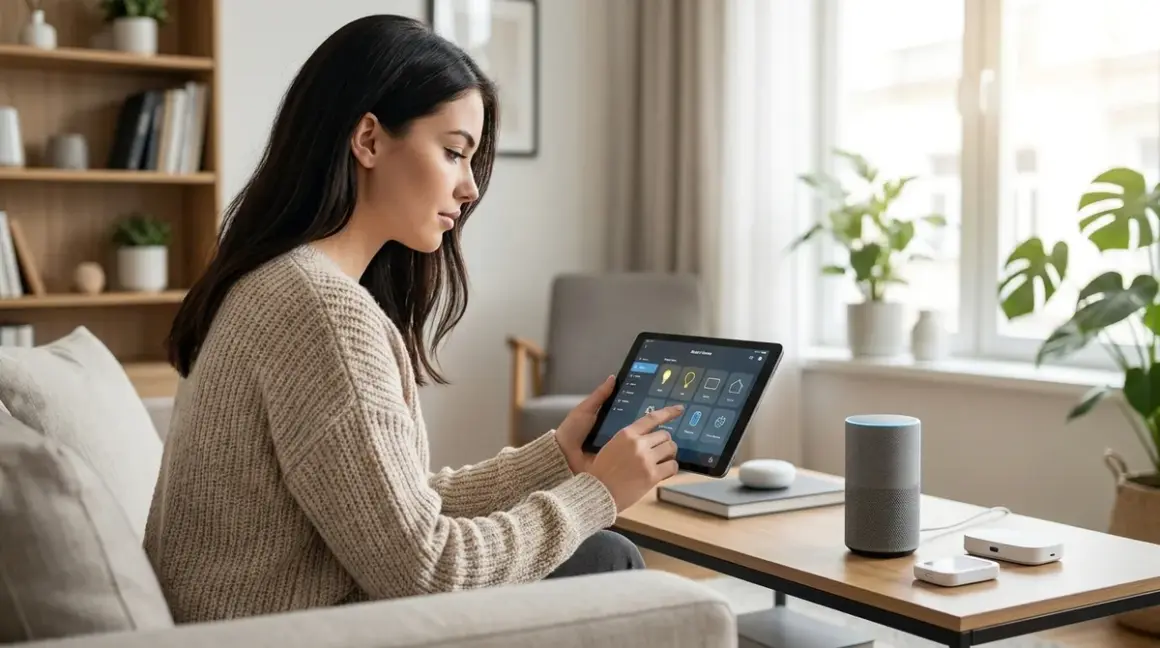

If you've ever wondered what is a smart home hub and whether your automation setup actually needs one, you're asking the right question. A hub sits at the center of your smart home, translating commands between devices that otherwise couldn't talk to each other. Without one, you're limited to Wi-Fi-only devices and phone-based control—which means no true automation, no mesh networking, and a lot of frustration when devices lose connection. In my experience installing systems for over 500 homes, the hub decision is where most first-time buyers either build a reliable foundation or lock themselves into an ecosystem they'll outgrow within a year.
What Is a Smart Home Hub?
What is a smart home hub? It's a central controller that bridges communication between smart devices using different protocols—Zigbee, Z-Wave, Thread, Matter, and Wi-Fi. Think of it as a translator: your Zigbee door lock, Z-Wave thermostat, and Wi-Fi security camera all speak different languages, and the hub makes them work together.

The hub processes automation logic locally, which means your "if motion detected, then turn on lights" rule runs even when your internet is down. That's the critical difference between a hub and just using manufacturer apps on your phone—the hub creates autonomy. Your devices respond to each other directly through the hub's mesh network, bypassing cloud servers and reducing latency from 2-3 seconds down to 200-400 milliseconds.
Most hubs look like small boxes that plug into your router via Ethernet. Popular examples include the Samsung SmartThings Station, Hubitat Elevation, and Home Assistant Yellow. Some hubs support multiple protocols (SmartThings handles Zigbee, Z-Wave, Thread, and Matter), while others are single-protocol (the Philips Hue Bridge only speaks Zigbee). The Understanding Hub Requirements: Which Smart Devices Need a Bridge in 2026 guide breaks down which devices absolutely require a hub versus those that work standalone.
In my experience, homeowners who skip the hub initially come back within six months because they hit the 10-15 device wall—where Wi-Fi-only setups start dropping connections, automations become unreliable, and everything depends on cloud servers staying online.
How Smart Home Hubs Work
A smart home hub operates on three layers: radio communication, local processing, and ecosystem integration.
Radio Communication and Mesh Networks
The hub contains physical radio transceivers for each protocol it supports. A Zigbee radio operates on the 2.4 GHz band (channels 11-26, configurable to avoid Wi-Fi interference), while Z-Wave uses 908.4 MHz in North America. Thread uses 2.4 GHz like Zigbee but with a different stack, and Matter runs on top of Thread or Wi-Fi as a transport layer.
When you pair a device, the hub establishes a bidirectional connection through its mesh network. Unlike Wi-Fi, where every device talks directly to your router, Zigbee and Z-Wave devices relay signals through each other. If your hub is in the basement and your smart lock is on the second floor, the signal might hop through a smart plug in the kitchen and a light switch in the hallway. This creates redundancy—if one path fails, the network automatically reroutes through another device.
The mesh self-heals, but it's not instant. Zigbee typically takes 15-30 seconds to find a new route after a device drops offline; Z-Wave is faster at 5-10 seconds. Thread networks recover in 2-5 seconds because the protocol was designed for faster failover. This matters for time-sensitive automations—I've seen homeowners frustrated when their "motion triggers light" automation has a 20-second delay because the mesh was rebuilding after a device went offline.
Local Automation Processing
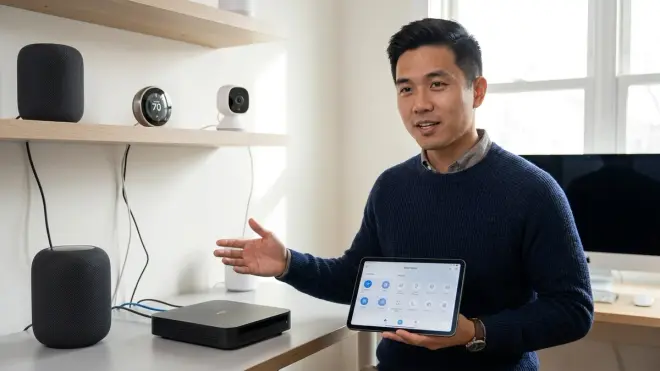
The hub stores your automation rules in local memory and executes them without calling out to the internet. A typical rule looks like this:
IF motion_sensor_hallway.state == "motion_detected"
AND time_now BETWEEN 22:00 AND 06:00
AND light_hallway.state == "off"
THEN light_hallway.turn_on(brightness=20%, duration=300_seconds)
This logic runs on the hub's processor—usually a low-power ARM chip with 1-4 GB of RAM. When the motion sensor sends a Zigbee packet reporting motion, the hub receives it, evaluates the conditions (time and current light state), and immediately sends a "turn on" command back through the mesh. Total latency: 200-600 milliseconds for Zigbee/Z-Wave, 100-300 milliseconds for Thread.
Compare that to Wi-Fi devices without a hub: the motion sensor uploads its state to the manufacturer's cloud server (latency: 500-2000ms), the cloud evaluates your automation rule, then sends a command down to the smart bulb (another 500-2000ms). Total latency: 1-4 seconds, and it fails completely if your internet is down.
The How to Create Smart Lighting Automations with If/Then Logic and Scenes article walks through building these rules step-by-step across different hub platforms.
Ecosystem Integration
Most hubs expose their devices to Amazon Alexa, Google Home, or Apple HomeKit through official integrations. When you link your SmartThings hub to Alexa, for example, all your Zigbee and Z-Wave devices appear as if they're native Alexa devices. You can then use voice commands or build Alexa routines that control them.
Matter 1.4 changes this dramatically. A Matter-certified hub acts as a border router, allowing Matter devices to be controlled by any Matter-compatible ecosystem simultaneously. Your Thread door lock can respond to Google Home, Apple Home, and Alexa at the same time, without the hub needing separate integrations for each. The Matter 1.4 Hub Requirements Explained: Border Routers, Bridges, and Controllers guide covers the technical requirements for this functionality.
Some hubs also bridge older Zigbee/Z-Wave devices into Matter through software translation, but this introduces latency—expect an additional 200-400ms compared to native Matter control. The Smart Home Protocol Compatibility Explained: Zigbee, Z-Wave, Thread, Matter, and Wi-Fi article details how these translations work and where they break down.
Why a Smart Home Hub Matters
You don't technically need a hub if you only use Wi-Fi devices and you're content controlling them through separate manufacturer apps. But that approach falls apart fast, and here's why.
Reliability and Latency
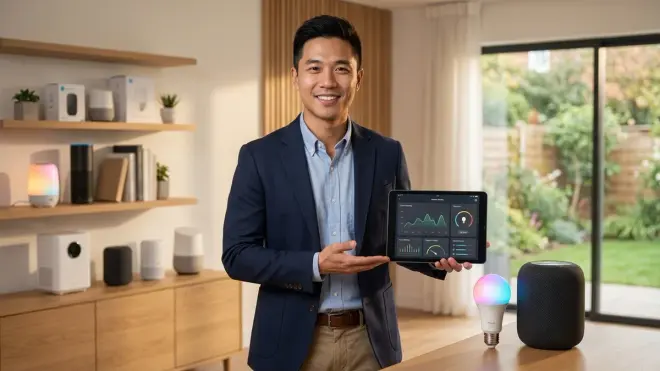
Wi-Fi devices depend on your router's capacity and internet uptime. A typical home router handles 20-30 simultaneous connections before performance degrades. If you have 15 smart bulbs, 5 smart plugs, 3 cameras, plus phones, laptops, and TVs all on Wi-Fi, you're pushing that limit. I've seen homeowners where their smart lights stopped responding reliably because their teenagers were streaming 4K video—the router was simply overwhelmed.
Zigbee and Z-Wave devices don't touch your Wi-Fi. They operate on separate radio bands through the hub's dedicated mesh network. A single Zigbee network supports up to 65,000 devices theoretically (realistically, around 100-150 before you need a second hub). Z-Wave supports 232 devices per network. Thread networks can scale to hundreds of devices per border router.
Latency matters for motion-activated lighting and security automations. When you walk into a dark room, a 200-millisecond delay feels instant; a 2-second delay feels broken. The Smart Bulb Response Times Explained: Latency, Reliability & Mesh Networks article breaks down how different protocols perform in real-world timing tests.
Local Control and Fallback Behavior
When your internet goes down, Wi-Fi devices that rely on cloud processing stop working. Your smart lock won't respond to app commands, your thermostat won't run its schedule, and your motion-activated lights do nothing.
A hub with local processing keeps critical automations running. Your door unlocking when you arrive home still works because the presence detection (via Zigbee sensor or phone Bluetooth proximity) and the door lock command both run locally through the hub. Your "lights off at 11 PM" rule still executes because the hub's internal clock doesn't need internet.
Some devices have fallback behaviors when they lose connection to the hub. Zigbee smart bulbs typically retain their last state—if they were on when the hub died, they stay on. Z-Wave devices often have configurable fallback: you can set a smart plug to turn on, turn off, or hold its current state if it loses connection for more than 60 seconds. This is critical for applications like Smart Home Backup Power Solutions: Complete Guide to Uninterruptible Automation, where you want specific devices to turn off during a power outage to extend battery runtime.
The Smart Device Fallback Behavior Checklist: What Happens When Wi-Fi or Hubs Fail covers how to configure these behaviors for different device types.
Cross-Brand Compatibility
Without a hub, you're locked into single-manufacturer ecosystems. If you buy all Philips Hue lights, you need the Hue app and Hue Bridge. If you add Aqara sensors, you need the Aqara app and Aqara hub. If you install a Schlage smart lock, you need yet another app. You end up with 5-10 different apps, none of which can talk to each other.
A unified hub consolidates everything into one interface. Your Philips Hue bulbs (Zigbee), GE/Jasco Z-Wave switches, and Best Thread-Enabled Smart Door Locks Under $300 in 2026 all appear in the same hub app, and they can interact with each other in automations.
Matter is designed to eliminate this fragmentation, but as of 2026, Matter device selection is still limited compared to mature Zigbee and Z-Wave catalogs. A hub that supports legacy protocols plus Matter gives you the widest device compatibility. The Device Mesh Network Reliability Explained: Zigbee vs Z-Wave vs Thread article compares the practical differences in coverage and reliability.
Types of Smart Home Hubs
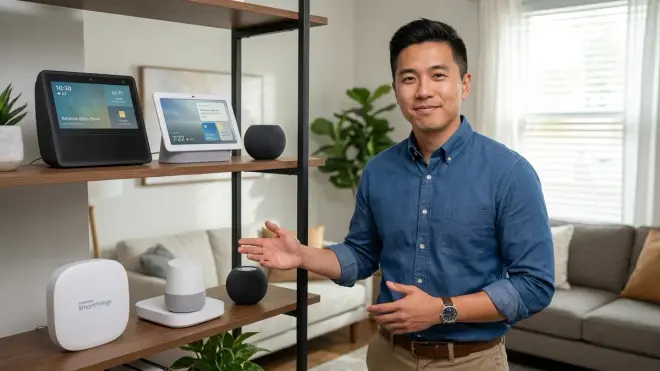
Not all hubs are created equal. Understanding the differences helps you avoid buying the wrong one.
1. Multi-Protocol Commercial Hubs
These are plug-and-play hubs with polished interfaces, official support, and multiple radio protocols built-in.
Examples: Samsung SmartThings Station (Zigbee, Z-Wave, Thread, Matter), Aeotec Smart Home Hub (Zigbee, Z-Wave), Homey Pro (Zigbee, Z-Wave, Thread, Matter, 433 MHz, infrared).
Pros: Easy setup, automatic updates, official integrations with Alexa/Google/HomeKit. SmartThings has the largest device compatibility database—I've rarely encountered a Zigbee or Z-Wave device it won't pair with.
Cons: You're dependent on the manufacturer's cloud for firmware updates and some advanced features. If Samsung decides to deprecate SmartThings (as they did with the original v1 hub), you're stuck migrating everything. Monthly fees are rare but starting to appear—Aeotec's advanced security features require a subscription.
Best for: First-time smart home buyers who want a reliable, supported system without tinkering.
2. Open-Source DIY Hubs
Platforms like Home Assistant, Hubitat Elevation, and OpenHAB run on dedicated hardware or general-purpose computers (Raspberry Pi, x86 mini PCs).
Example: Home Assistant Yellow is a pre-configured device with Zigbee, Thread, and Matter radios, designed specifically for Home Assistant OS. You can also install Home Assistant on any Raspberry Pi 4 and add USB radio dongles for Zigbee/Z-Wave.
Pros: Complete local control, no manufacturer cloud dependencies, infinitely customizable automation logic, and a massive community writing custom integrations. Home Assistant can control obscure devices that commercial hubs ignore. Advanced users write Python scripts for complex automations that would be impossible on SmartThings.
Cons: Steeper learning curve, no official support (community forums only), and you're responsible for backup and updates. I've seen non-technical homeowners brick their systems by applying updates without reading release notes. If you're comfortable with YAML configuration files and occasional troubleshooting, this is unbeatable. If you panic when something breaks, stick with commercial hubs.
Best for: Tech-savvy users who want maximum control and don't mind occasional tinkering. The How to Create Energy-Saving Automations with Home Assistant and Matter Devices guide assumes Home Assistant but translates to other DIY platforms.
3. Single-Protocol Bridges
These connect one manufacturer's devices to your Wi-Fi network and other ecosystems.
Examples: Philips Hue Bridge (Zigbee only, Hue devices only), Lutron Caseta Smart Bridge (proprietary Lutron protocol).
Pros: Extremely reliable within their ecosystem. Philips Hue's bridge and bulbs have the lowest failure rate I've seen—maybe 1 in 200 installations has issues. Lutron Caseta is even more bulletproof.
Cons: Limited to that manufacturer's devices. You can't pair third-party Zigbee bulbs with a Hue Bridge (technically you can, but Philips removed that feature in firmware updates). If you want cross-brand control, you need a secondary hub or you're buying into ecosystem lock-in.
Best for: People committed to a single brand's aesthetic or who only need lighting control. The Lutron Caseta vs Philips Hue: Which Smart Lighting System Is Better? comparison explains when each makes sense.
4. Voice Assistant Hubs

Amazon Echo (4th gen and newer), Google Nest Hub Max, and Apple HomePod mini have limited built-in hub functionality.
The Echo Plus and 4th-gen Echo include a Zigbee radio and can directly control Zigbee bulbs, plugs, and sensors without a separate hub. Google and Apple devices don't have Zigbee—they rely on Thread/Matter only.
Pros: Convenient if you're already buying a voice assistant. No separate device to plug in.
Cons: Very limited device compatibility (Zigbee-only for Amazon, Thread/Matter-only for Google/Apple), weak automation logic, and cloud-dependent. These aren't true replacement hubs—they're stepping stones for casual users. The Google Home Hub vs Amazon Echo Hub vs Apple HomePod: Smart Home Controller Comparison details the limitations.
Best for: Casual users who want to control 5-10 devices with voice commands and don't need complex automations.
Do You Actually Need a Smart Home Hub?
You can skip a hub if:
- You only use Wi-Fi devices (Govee lights, Wyze cameras, TP-Link Kasa plugs) and you're happy with separate apps.
- You have fewer than 10 devices and don't plan to expand.
- You don't care about local control during internet outages.
- You're not building automations beyond basic schedules.
You should invest in a hub if:
- You're buying Zigbee, Z-Wave, or Thread devices that require a hub.
- You want cross-brand automations (e.g., Philips Hue lights respond to Samsung SmartThings motion sensors).
- You need local processing for low-latency response or offline reliability.
- You're scaling beyond 15-20 devices and want to offload them from your Wi-Fi network.
- You're building advanced automations with multiple conditions and device interactions.
In my experience, anyone serious about smart home automation eventually buys a hub. The question is whether you do it upfront and build on a solid foundation, or whether you start with Wi-Fi devices, hit limitations, and then have to retroactively add a hub and replace half your devices with compatible ones. The How to Plan Your Smart Home Automation System guide helps you map out which approach fits your situation.
What to Look for When Buying a Hub
If you've decided you need a hub, here's what separates good ones from frustrating ones.
1. Protocol Support Checklist
- Zigbee: Required if you want Philips Hue, Aqara sensors, IKEA Trådfri, or most budget smart home devices. Zigbee 3.0 is the current standard—avoid hubs with only Zigbee HA 1.2 support.
- Z-Wave: Required for GE/Jasco switches, Zooz devices, and most smart locks. Z-Wave Plus (700 series or newer) has better range and battery life than older generations. North American devices use 908.4 MHz; European devices use 868.4 MHz—your hub must match your region.
- Thread: Required for new Matter devices. As of 2026, Thread support is appearing on high-end sensors, locks, and lighting. Not essential yet, but future-proofing matters.
- Matter: Not a radio protocol itself but a compatibility layer. A Matter-certified hub can expose devices to multiple ecosystems simultaneously. The Matter 1.4 Smart Home Protocol: Complete Guide to Cross-Platform Automation article explains how this works.
2. Local vs. Cloud Processing
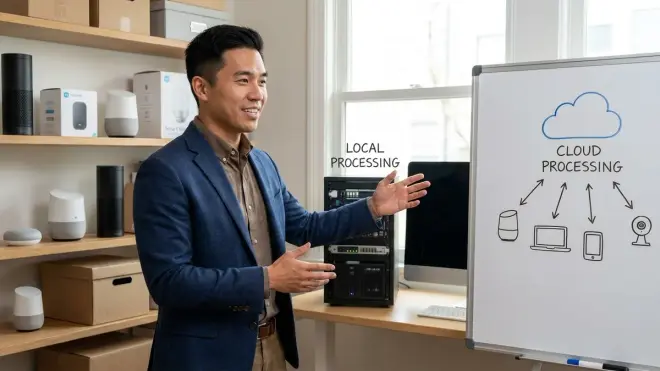
Ask explicitly: Does this hub run automations locally when the internet is down? Some "hubs" are just glorified Wi-Fi bridges that route everything through the manufacturer's cloud. SmartThings, Hubitat, and Home Assistant all process locally. Many cheaper branded hubs (especially those bundled with DIY security systems) do not.
3. Automation Logic Complexity
Basic hubs offer simple "if this, then that" rules with one or two conditions. Advanced hubs support:
- Multiple conditions: "If motion AND time is between 10 PM-6 AM AND light level < 10 lux, then..."
- Delays and timers: "Turn off after 5 minutes of no motion."
- Variables and state tracking: "If front door has been unlocked for more than 30 seconds AND nobody is home, send alert."
Home Assistant and Hubitat offer the most powerful automation logic. SmartThings is mid-tier. Single-brand bridges (Hue, Lutron) are very limited.
The How to Compare Smart Device Automation Logic and Conditional Triggers guide shows example rules across platforms so you can see the differences before buying.
4. Device Limits and Mesh Capacity
Zigbee networks theoretically support 65,000 devices, but practical limits are much lower. A hub's processor and memory constrain how many devices it can manage simultaneously. SmartThings officially supports "hundreds" of devices but performance degrades above 150-200. Hubitat recommends staying under 100-120 devices. Home Assistant's limit depends on your hardware—a Raspberry Pi 4 with 4GB RAM handles 200-300 devices comfortably; a dedicated x86 system can manage 1000+.
If you're planning an extensive system (whole-home lighting, security, HVAC, and irrigation), factor in these limits early. The How to Automate Your Home Room by Room planning guide helps estimate device counts by room.
5. Power Backup Compatibility
Hubs need continuous power to maintain mesh networks and run automations. During a power outage, a hub connected to a UPS (uninterruptible power supply) keeps your automations running as long as the battery lasts—typically 2-8 hours depending on UPS capacity and connected load.
Not all hubs consume the same power. SmartThings Station draws around 3-5 watts. Home Assistant on a Raspberry Pi draws 5-8 watts. Hubs with multiple radios (Homey Pro) can draw 10-15 watts. This affects how long your UPS will sustain the system. The Best UPS Systems for Smart Home Hubs: Zigbee, Z-Wave & Matter Device Protection article covers sizing and runtime calculations.
Common Hub Setup Mistakes I See Repeatedly
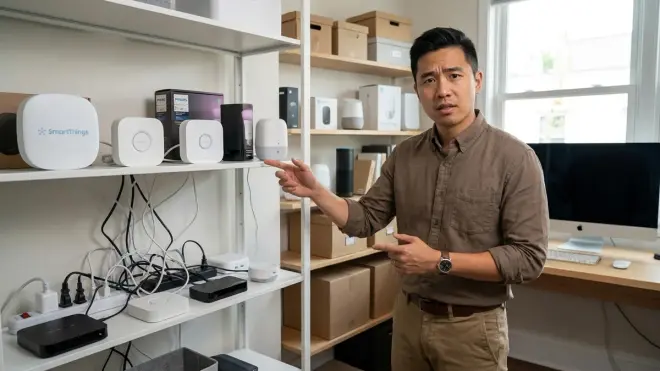
Placing the hub in a metal cabinet or enclosed closet. Radio signals can't penetrate metal enclosures effectively. I've seen Zigbee networks with 30% of devices showing "unreachable" simply because the hub was inside a server rack. Mount the hub on top of furniture or attach it to a wall in an open location.
Not checking the Zigbee channel vs. Wi-Fi channel overlap. Zigbee and Wi-Fi both use 2.4 GHz. If your Wi-Fi is on channel 6, your Zigbee network should use channel 20 or higher to avoid interference. Most hubs auto-select the channel, but if you're seeing dropped connections, manually configure it. The Smart Home Protocols Explained: Zigbee, Z-Wave, Thread, and Matter guide shows how to check channel assignments.
Assuming all "Zigbee" or "Z-Wave" devices are compatible. Zigbee has multiple profiles (HA, LL, ZCL), and not all hubs support all profiles. Z-Wave has regional variants (North America, Europe, Australia) that use different frequencies. Always check the hub's official compatibility list before buying devices.
Skipping the mesh-building phase. If you install a hub and immediately pair 20 battery-powered sensors scattered across your house, half of them won't work reliably because there aren't enough powered devices (plugs, switches) to relay signals. Install powered devices first to build the mesh, then add battery devices once the network is strong. The Device Mesh Network Reliability Explained: Zigbee vs Z-Wave vs Thread article explains the step-by-step sequence.
Not setting up backups before firmware updates. Home Assistant, Hubitat, and SmartThings all offer backup/restore functions. Use them before every major update. I've seen homeowners lose 200+ device configurations and 50+ automations because an update corrupted the database and they had no backup.
Frequently Asked Questions
What's the difference between a smart home hub and a smart speaker?
A smart home hub is a dedicated controller with mesh radio hardware (Zigbee, Z-Wave, Thread) that manages device communication and runs automations locally. A smart speaker (Amazon Echo, Google Nest) is primarily a voice assistant that can control Wi-Fi smart devices through cloud services. Some smart speakers include basic hub functionality—4th-gen Echo devices have a Zigbee radio—but they lack the processing power, device compatibility, and local automation logic of dedicated hubs like SmartThings or Hubitat.
Can I control my smart home without a hub?
Yes, if you use only Wi-Fi devices (Wyze, Govee, TP-Link Kasa) that connect directly to your router. You'll control them through individual manufacturer apps or via voice assistants like Alexa or Google Home, which act as cloud-based coordinators. However, you won't have local automation processing, cross-brand device interaction, or the reliability of mesh networks. Most Wi-Fi-only setups work fine for 5-10 devices but become unreliable and fragmented as you scale up. The Best Smart Home Devices for Beginners guide covers Wi-Fi-only starter options.
Do I need multiple hubs for different protocols?
Only if your primary hub doesn't support all the protocols you want to use. A SmartThings Station supports Zigbee, Z-Wave, Thread, and Matter in one device, so you'd only need one hub. But if you have a Philips Hue Bridge (Zigbee-only) and want to add Z-Wave door locks, you'd need a second hub with Z-Wave support. Multi-protocol hubs consolidate everything, which simplifies management and enables cross-protocol automations—your Zigbee motion sensor can trigger your Z-Wave lights without needing separate platforms. The Understanding Smart Home Hub Requirements checklist maps common device types to their protocol requirements.
Will my smart home hub work during a power outage?

Only if you connect it to a battery backup (UPS). The hub itself will continue processing automations and maintaining its mesh network as long as it has power. However, your internet router and modem also need backup power for cloud-based features (voice assistant integration, remote access) to work. Battery-powered devices like sensors and door locks will continue reporting to the hub during an outage, but powered devices like smart plugs and switches will go offline unless they're on backup power too. The How to Configure Smart Home Fallback Automations During Power Outages guide covers designing systems that gracefully handle power loss.
Can I use multiple smart home hubs together?
Yes, but it's complicated. You can run separate hubs for different protocols or ecosystems—one for Zigbee, one for Z-Wave—and link them through a coordination platform like Home Assistant or Apple HomeKit. This allows cross-hub automations, but it introduces complexity and additional failure points. Some hubs can act as secondary controllers on the same network (Z-Wave supports multiple controllers natively), but Zigbee networks are typically single-hub. Matter is designed to solve this problem by allowing multiple controllers to share the same devices simultaneously, but as of 2026, Matter device availability is still limited. In my experience, using multiple hubs makes sense only when you've outgrown the device limits of a single hub or when you're deliberately isolating critical security devices from entertainment/convenience devices.
Summary
What is a smart home hub? It's the central coordinator that enables different smart devices—Zigbee sensors, Z-Wave switches, Thread locks, and Wi-Fi cameras—to work together through local automation logic and mesh networking. You don't need a hub if you're sticking with a handful of Wi-Fi devices and simple app-based control, but anyone building a scalable, reliable smart home quickly hits the limits of that approach.
The right hub depends on your technical comfort level and device preferences. Multi-protocol commercial hubs like SmartThings offer the easiest setup with broad device compatibility. Open-source platforms like Home Assistant provide maximum flexibility and local control for users willing to troubleshoot. Single-protocol bridges work well if you're committed to one brand's ecosystem.
Start by identifying which devices you want—that determines which protocols you need. Then choose a hub that supports those protocols, processes automations locally, and fits your technical skill level. Install powered mesh devices (plugs, switches) first to build network coverage, then add sensors and battery devices. Back up your configuration before updates, and connect the hub to a UPS if reliable operation during power outages matters to you.
A well-chosen hub transforms disconnected gadgets into a genuinely automated home. The initial setup takes thought, but the result is a system that responds instantly, works offline, and scales as your needs grow. That's worth the investment.