


Buying smart home devices without a systematic smart device comparison checklist is like wiring a house without a circuit diagram—you'll probably get something working, but it won't be reliable, and you'll regret it later. I've walked into too many homes where the homeowner spent hundreds on devices that don't talk to each other, depend on subscriptions they didn't expect, or fail when the internet drops.
This smart device comparison checklist gives you 12 critical factors to evaluate before you buy any smart device. You'll avoid compatibility nightmares, hidden costs, and unreliable automations. Whether you're buying your first smart bulb or building a whole-home system, these factors apply universally.

Protocol and Ecosystem Compatibility
This is where most installations fail before they even begin. I've seen homeowners buy five devices from five different ecosystems and wonder why nothing works together.
Check the communication protocol first: Zigbee, Z-Wave, Thread, Matter, or Wi-Fi. A Zigbee motion sensor won't talk to a Z-Wave hub without a bridge or multi-protocol controller. If you're starting fresh, Matter 1.4 devices offer the best cross-platform compatibility in 2026.
Verify hub requirements explicitly: Does the device need a dedicated hub, or does it work with your existing Google Home, Amazon Echo, or Apple HomePod? The product page will say "requires hub" but rarely specifies which hub models work. Cross-reference with the manufacturer's compatibility list before buying. Our guide to understanding smart home hub requirements breaks down exactly which devices need bridges.
Identify ecosystem lock-in risks: Some devices only work within their manufacturer's app or ecosystem (looking at you, proprietary Wi-Fi cameras). If you want multi-platform control or plan to migrate to a different hub later, this will block you. Thread-based devices generally offer better portability.
Test for Matter bridging support: Even if a device isn't native Matter, some manufacturers offer Matter bridging through firmware updates or hub integration. Check the manufacturer's roadmap—but don't buy based on promises. Only purchase for the functionality that exists today.
Check controller compatibility across voice assistants: A device might work with Alexa but not Google Assistant, or vice versa. If you use multiple voice assistants (common in multi-person households), verify support for all of them. I've seen couples argue over which assistant to standardize on because half their devices only work with one.
Understand protocol coexistence limitations: Zigbee and Wi-Fi operate on overlapping 2.4 GHz frequencies. If you're building a dense Zigbee mesh network, nearby Wi-Fi routers can cause interference and dropped commands. Z-Wave operates on sub-1 GHz frequencies and avoids this issue entirely. Our article on smart home protocol compatibility covers frequency planning in detail.
Automation Capabilities and Logic Flexibility
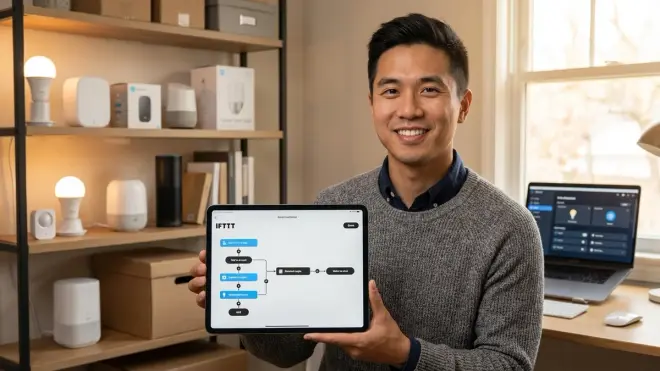
Most people buy smart devices for automations, but they don't check if the device can actually do the automations they imagine. The "smart" label doesn't guarantee useful automation logic.
Verify conditional trigger support: Can the device trigger automations based on multiple conditions? For example: "IF motion is detected AND it's after sunset AND the thermostat is set to Away mode, THEN turn on lights." Cheap Wi-Fi devices often only support single-condition triggers, which limits useful automations.
Check local vs cloud automation execution: Cloud-dependent automations stop working when your internet drops. Local execution (on-hub or on-device) keeps working during outages. Zigbee and Z-Wave devices typically execute locally when paired with hubs like Home Assistant or SmartThings. Wi-Fi devices usually depend on cloud servers, but some (like certain TP-Link Kasa devices) offer local control through third-party integrations.
Test time-based scheduling granularity: Can you schedule actions down to the minute, or only hourly blocks? Can you set different schedules for weekdays vs weekends? Cheap smart plugs often only offer basic on/off timers without day-of-week customization.
Look for scene integration support: Scenes let you control multiple devices with one command ("Goodnight" turns off all lights, locks doors, arms security). Not all devices integrate with scene systems, especially across ecosystems. Matter 1.4 has improved scene support, but implementation varies by manufacturer.
Assess automation response latency expectations: Motion sensors triggering lights should respond in under 500ms for a natural feel. Anything over 2 seconds feels sluggish and frustrating. Protocol matters here—Zigbee and Z-Wave typically offer 200-800ms latency, while Wi-Fi devices can range from 1-5 seconds depending on network congestion. Thread promises sub-200ms latency but real-world performance depends on mesh density. Our comparison of Zigbee vs Z-Wave motion sensors includes actual latency testing.
Check for fallback behavior documentation: What happens when the hub goes offline, or the internet drops? Some devices default to "on," others to "off," and some retain their last state. You need to know this before installing critical devices like door locks or heating systems. I've seen smart thermostats shut down during outages, leaving homes to freeze because the automation didn't fail safely.
Hub and Network Infrastructure Requirements
Your network infrastructure determines whether your devices will work reliably or drop offline randomly. Most setup guides skim over these requirements, assuming you have enterprise-grade networking.
Document mesh network density needs: Zigbee, Z-Wave, and Thread all depend on mesh networks where each powered device extends the range. You need at least one powered device (smart plug, in-wall switch, or hub) within 30-40 feet of battery-powered sensors. Sparse networks lead to unreliable command delivery and status updates.
Verify router compatibility and VLAN support: Some smart devices fail with certain router configurations—double NAT, VLAN isolation, or aggressive firewall rules can block device discovery. If you run IoT devices on a separate VLAN for security (which you should), check that the device supports cross-VLAN communication or mDNS reflection. I've spent hours troubleshooting Google Home devices that couldn't discover Chromecast targets across VLANs.
Check 2.4 GHz vs 5 GHz Wi-Fi requirements: Most Wi-Fi smart devices only work on 2.4 GHz networks. If your router combines 2.4 GHz and 5 GHz into one SSID with band steering, you may need to temporarily disable 5 GHz during device setup. This catches first-time smart home buyers constantly.
Assess bandwidth and concurrent connection limits: Each Wi-Fi device consumes a connection slot on your router. Consumer routers typically handle 20-50 concurrent connections before performance degrades. If you're planning a 30-device smart home, your router might become the bottleneck. Zigbee and Z-Wave hubs only consume one Wi-Fi connection while supporting 100+ sub-devices.
Test border router requirements for Thread networks: Thread devices need a border router to connect to your home network and the internet. Apple HomePod Mini, Apple TV 4K, Google Nest Hub (2nd gen), and some dedicated hubs serve this role. Without one, Thread devices won't work at all. Our guide to Matter 1.4 hub requirements lists compatible border routers.
Subscription Costs and Cloud Dependencies

The purchase price is only part of the total cost. Hidden subscriptions can double or triple your actual expense over the device's lifetime.
Identify mandatory vs optional subscriptions: Some security cameras are useless without a cloud subscription (no local storage, no notifications, limited live view). Others work fully without subscriptions but offer cloud storage as an option. The subscription-free security cameras guide covers which brands work without ongoing fees.
Calculate subscription costs over the device's expected lifespan: A $30/year subscription on a device you'll use for 5 years adds $150 to the real cost. For four cameras, that's $600 in subscriptions—more than the cameras themselves. Run the math before buying. Our article on security systems with no monthly fees shows subscription-free alternatives.
Check for feature paywalls in free tiers: "Free" plans often lock essential features like person detection, activity zones, or webhook integrations behind paid tiers. You won't discover this until after you've installed the device and tried to set up automations. Read the subscription tier comparison chart carefully.
Assess cloud service reliability and vendor lock-in: If the manufacturer shuts down their cloud service (which happens—remember Wink's forced subscription in 2020?), cloud-dependent devices become paperweights. Devices with local control options (Home Assistant, local API access, or MQTT support) survive vendor shutdowns. This is why I always recommend devices with documented local control methods.
Data Privacy and Local Control Options
Smart devices are sensors in your home, recording your patterns and routines. You need to know where that data goes and who controls it.
Verify local processing vs cloud processing: Does the device send video, audio, or sensor data to manufacturer servers for processing, or does it process locally? Cloud processing means your data traverses the internet (privacy risk, latency increase) and stops working during outages. Local processing keeps data in your home and responds faster.
Check for required account creation and data sharing: Many devices force you to create an account and agree to data sharing before you can use them. Read the privacy policy—specifically, what data they collect, who they share it with (advertising partners?), and whether you can opt out. Some manufacturers are transparent; others bury concerning practices in legal language.
Look for API access and third-party integration support: Devices with open APIs or Home Assistant integration give you control over your data. You can process it locally, store it however you want, and create automations without cloud dependencies. Closed ecosystems (no API, no local control) lock you into the manufacturer's apps and servers permanently.
Assess camera and microphone data handling: For devices with cameras or microphones (smart displays, video doorbells, security cameras), check whether they support local storage, end-to-end encryption for cloud uploads, and physical privacy shutters or mute switches. The local storage vs cloud storage comparison breaks down privacy implications.
Installation Complexity and Physical Requirements
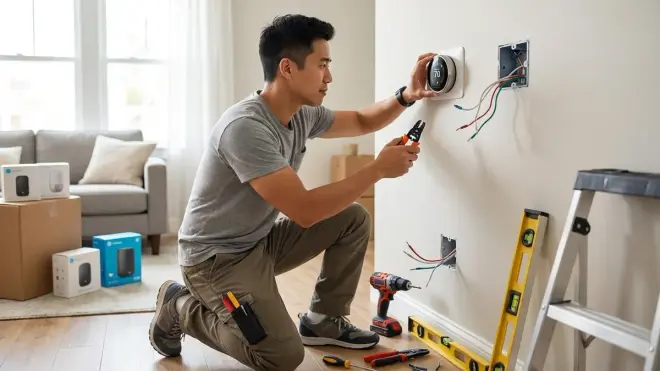
The product page shows the device in ideal conditions, not your actual installation environment. Real-world installations involve constraints the manufacturer doesn't mention.
Document power source requirements: Battery-powered, plug-in, or hardwired? Battery devices need replacement (typically every 6-12 months for sensors). Plug-in devices consume an outlet (which might already be scarce). Hardwired devices require electrical work and possibly permit requirements. I've seen homeowners buy hardwired smart switches without realizing they'd need to hire an electrician for installation.
Check mounting and placement constraints: Motion sensors need line-of-sight to the area you're monitoring. Door/window sensors need alignment within 1-2 inches when closed. Smart thermostats can't be installed on exterior walls or near heat sources. The installation manual (which you should download before buying) lists these requirements. Our guide to hiding smart home devices addresses signal blocking issues.
Verify wiring compatibility for switches and outlets: Smart switches often require a neutral wire, which older homes (pre-1980s) might not have at the switch box. Replacing a three-way switch with a smart switch requires specific wiring configurations that not all smart switches support. Check your existing wiring before buying, or budget for professional installation.
Assess environmental ratings for outdoor devices: IP65, IP66, IP67 ratings indicate dust and water resistance. Not all "outdoor" smart devices survive rain, freezing, or direct sunlight. I've seen homeowners mount Wi-Fi smart plugs outdoors without weatherproof ratings, only to have them fail after the first rainstorm.
Test signal range in your actual environment: Manufacturer range specs assume open air with no obstructions. Walls, metal studs, and appliances reduce range dramatically. Zigbee might work 30 feet through drywall but fail at 15 feet through a refrigerator. Buy from retailers with good return policies so you can test range in your home before committing. The smart device latency testing guide includes signal strength testing methods.
Device Reliability and Fallback Behavior

When smart devices fail, they should fail safely and predictably. You need to know what happens during power outages, hub failures, and network disruptions.
Check behavior during internet outages: Do devices retain local control, or do they become unresponsive? Zigbee and Z-Wave devices paired with local hubs typically keep working. Cloud-dependent Wi-Fi devices stop responding to app commands but might retain physical button control. Critical devices (door locks, thermostats, security systems) should work locally even when the internet is down.
Verify hub failure recovery: If your hub crashes or reboots, do devices automatically reconnect, or do you need to manually re-pair them? Some systems recover gracefully; others require full device resets. This matters when you're troubleshooting at 2 AM because the motion sensors stopped triggering lights.
Test power loss state retention: When power is restored after an outage, does the device return to its previous state, default to "on," or default to "off"? Smart plugs controlling aquarium pumps or medical devices need predictable power-on behavior. I've seen aquarium owners lose fish because smart plugs defaulted to "off" after a brief power flicker.
Assess firmware update reliability and frequency: Regular firmware updates fix bugs and add features, but buggy updates can brick devices or break integrations. Check user forums for the device—if recent firmware updates caused widespread problems, that's a warning sign. Some manufacturers test thoroughly; others push updates that break existing automations. Our Matter 1.4 migration guide covers firmware update risks.
Look for offline functionality documentation: Manufacturers rarely advertise what doesn't work offline. You'll find this information in user forums, Reddit threads, and detailed reviews. The smart device fallback behavior checklist compiles offline functionality for common devices.
Customer Support and Warranty Coverage
You'll need support at some point—setup issues, firmware bugs, or hardware failures. The quality of support varies wildly across manufacturers.
Test support responsiveness before buying: Check reviews specifically mentioning customer support. Long wait times, unhelpful responses, or requiring you to troubleshoot for hours before they'll consider a replacement are red flags. Some manufacturers offer live chat or phone support; others only provide slow email support or community forums.
Verify warranty length and coverage: One-year warranties are standard, but some manufacturers offer extended warranties or paid protection plans. Read the warranty terms—many exclude "misuse," which they define broadly (installed outdoors when not rated for it, used with third-party hubs, etc.). Know what's covered before you need to claim it.
Check replacement part availability: Can you buy replacement batteries, mounting hardware, or modular components? Or do you need to replace the entire device when a small part fails? Modular design is rare in smart home devices but valuable for long-term maintenance.
Assess regional support availability: Some manufacturers only offer support in certain countries or regions. If you're buying from an international seller or importing devices, you might void the warranty or find support unavailable. Verify that support operates in your region before buying.
Energy Consumption and Efficiency
Smart devices promise energy savings through automation, but they also consume power themselves. The net energy impact isn't always positive.
Check always-on power draw for plug-in devices: Smart plugs, hubs, and always-listening speakers consume power 24/7. A smart plug drawing 2W constantly uses 17.5 kWh per year—not much individually, but multiply by 20 devices and it adds up. Energy monitoring smart plugs let you measure actual consumption and identify phantom loads.
Verify battery life for wireless sensors: Manufacturers often claim "up to 2 years" battery life, but real-world performance depends on how often the device reports and at what interval. Motion sensors in high-traffic areas drain batteries faster. Check user reviews for realistic battery life expectations. I recommend buying rechargeable battery-powered devices when available to reduce waste and ongoing costs.
Assess energy monitoring accuracy: If you're buying devices for energy management, check whether they provide real-time power monitoring, historical data, and per-device granularity. Basic smart plugs report on/off status only. Advanced models like the Emporia Smart Plug measure voltage, current, and power factor with ±2% accuracy for detailed energy analysis.
Calculate potential energy savings: Will the device actually save energy, or just shift when you use it? Smart thermostats save 10-15% on heating/cooling through scheduling and presence detection. Smart lighting with motion sensors saves 20-30% by turning off lights in empty rooms. But a smart coffee maker that preheats before you wake up might increase consumption. Our energy-saving automations guide includes actual savings calculations.
Platform and App Experience
You'll interact with the device through apps daily. Clunky apps make smart devices frustrating instead of convenient.
Test the app before buying if possible: Download the manufacturer's app and explore the interface. Is it intuitive? Does it load quickly? Can you control multiple devices efficiently? Some apps are polished; others feel like afterthoughts with confusing navigation and slow response times. User reviews mentioning the app specifically are valuable here.
Check for multi-user access and permissions: Can family members control devices from their own accounts, or do you all share one login? Can you grant limited access (e.g., guest control of lights but not security cameras)? Multi-user support is essential for shared households but often poorly implemented.
Verify widget and shortcut support: For frequently-used controls, home screen widgets and Siri/Google Assistant shortcuts save time. Not all apps support widgets or shortcuts, forcing you to open the app each time. This is particularly annoying for door locks or garage controllers.
Assess cross-platform app availability: Is the app available for iOS, Android, and web browsers? Some manufacturers only support one platform or provide limited functionality on others. If household members use different devices, verify full support across all of them.
Check automation and scene creation usability: Creating automations through apps ranges from straightforward drag-and-drop interfaces to confusing nested menus requiring multiple screens. If you plan complex automations, test the interface before committing to the ecosystem. Our article on comparing smart device automation logic walks through different interface approaches.
Device Firmware and Update Policy

Firmware updates fix bugs, add features, and patch security vulnerabilities—or they break things that worked fine. Update policies vary dramatically across manufacturers.
Verify update frequency and transparency: Regular updates indicate active development and security maintenance. Check the manufacturer's release notes—do they explain what each update changes, or just say "bug fixes and improvements"? Transparent release notes help you decide whether to update immediately or wait for user feedback.
Check for forced vs optional updates: Some devices auto-update without consent, which can break integrations or change behavior unexpectedly. Others let you defer updates indefinitely (security risk). The best approach offers optional updates with clear change descriptions, letting you choose when to update.
Assess backward compatibility with older hubs: New firmware sometimes drops support for older hub versions or requires hub firmware updates first. If you're running an older hub that the manufacturer no longer updates, new device firmware might break compatibility. This has happened with SmartThings, Wink, and other platforms during major transitions.
Look for end-of-life support policies: How long will the manufacturer support the device with updates? Consumer IoT devices often get 2-3 years of updates, then stop receiving security patches. Long-lived devices (in-wall switches, thermostats) should receive at least 5 years of support. Check whether the manufacturer has publicly committed to support timelines.
Interoperability and Migration Path
Your first device decision shapes your entire smart home ecosystem. You need an exit strategy if you want to switch platforms later.
Check for Matter certification and bridging support: Matter 1.4 enables cross-platform compatibility, letting you control devices through Google Home, Apple Home, and Amazon Alexa simultaneously. Matter-certified devices future-proof your investment. Non-Matter devices might offer Matter bridging through manufacturer hubs, but verify this works reliably before depending on it.
Assess export and backup options for automations: If you switch hubs, can you export your automation logic, or do you need to recreate everything manually? Some platforms (Home Assistant) let you export configurations as text files. Proprietary platforms (Google Home, Alexa) lock automations into their ecosystems with no export option. Rebuilding 50+ automations takes hours.
Verify device re-pairing requirements during migration: Switching hubs often requires factory-resetting devices and re-pairing them. For 10 devices, this is annoying. For 50+, it's a multi-day project. Thread and Matter devices promise easier migration, but implementation varies by manufacturer. Our Matter migration guide covers actual re-pairing requirements.
Check for third-party integration support: Devices that integrate with Home Assistant, Hubitat, or other open platforms give you flexibility to switch ecosystems while keeping devices. Closed ecosystems (devices that only work with the manufacturer's app) trap you. I always recommend devices with documented third-party integrations as a hedge against future platform changes.
Price vs Value and Total Cost of Ownership
The cheapest device often costs more long-term when you factor in subscriptions, replacements, and upgrade needs. Your smart device comparison checklist should include lifetime cost, not just purchase price.
Calculate total cost over expected device lifespan: Add purchase price + installation costs + subscription fees + battery replacements + potential hub requirements. A $20 Wi-Fi plug with a $3/month cloud subscription costs $200 over 5 years. A $35 Zigbee plug with no subscription costs $35 total. The math changes which device offers better value.
Compare feature sets at similar price points: Are you paying extra for features you'll actually use, or are you overpaying for marketing? Branded devices often charge premium prices for features that generic devices offer at half the cost. The Philips Hue White and Color Ambiance Bulb costs around $50, while generic Zigbee RGBW bulbs cost around $15 with nearly identical functionality. You're paying for brand, polish, and ecosystem integration—decide whether that's worth the premium.
Assess replacement cost if the device fails: Devices fail. Cheap devices fail more often, but expensive devices aren't immune. If a $150 device fails after 3 years with no warranty, that's a $50/year cost. A $40 device that lasts 2 years costs $20/year. Reliability matters more than initial price for total cost of ownership.
Factor in ecosystem expansion costs: Your first device is rarely your last. If you buy a device requiring a $60 hub, but you'll only ever buy one device, that hub cost matters. If you'll eventually buy 20 compatible devices, the hub cost amortizes across them. Plan your expansion path before choosing ecosystems. The concealed smart home hubs guide compares hub costs and device support.
Final Check Before You Go
Run through this condensed smart device comparison checklist before clicking "buy":
- Protocol confirmed: Zigbee, Z-Wave, Thread, Matter, or Wi-Fi—and compatible with my existing hub or voice assistant
- Hub requirements verified: No surprises about needing additional hardware
- Automation logic tested: Device supports the if/then conditions I need
- Subscription costs calculated: Total 5-year cost including all fees
- Local control confirmed: Device works during internet outages
- Installation requirements clear: Power source, wiring, placement, and tools needed
- Fallback behavior documented: Known behavior during failures
- App experience reviewed: User ratings mention usable apps and responsive controls
- Firmware update policy checked: Active development and transparent release notes
- Migration path exists: Device works with third-party platforms or Matter
- Total cost calculated: Purchase + installation + subscriptions + batteries over expected lifespan
- Return policy confirmed: Can test in my home and return if incompatible
This checklist applies whether you're buying your first smart bulb or your fiftieth sensor. In my experience, homeowners who skip these checks end up replacing devices within six months—wasting money and time.
Frequently Asked Questions
What's the single most important factor in a smart device comparison checklist?
Protocol and ecosystem compatibility is the most important factor because it determines whether the device will work with your existing setup and future purchases. A device with perfect features that can't communicate with your hub or other devices is useless. Always verify the communication protocol (Zigbee, Z-Wave, Thread, Matter, or Wi-Fi) and confirm compatibility with your hub or voice assistant before considering any other factors. I've seen homeowners spend hundreds on incompatible devices that end up in a drawer because they skipped this step.
Do I need to check all 12 factors for every device purchase?
You should check all 12 factors for your first few devices to establish your ecosystem foundation, but you can streamline the process once you've chosen a platform. After you've selected a protocol and hub, factors like protocol compatibility and hub requirements become simpler—you're just verifying new devices work with your existing setup. However, always check subscription costs, automation capabilities, and installation requirements even for devices within your established ecosystem, since these vary significantly even among compatible products.
How do I know if a device has reliable local control without subscription requirements?
Check whether the device's product page explicitly mentions "local control," "works without internet," or "no subscription required." Read detailed user reviews on Reddit and manufacturer forums where users discuss offline functionality and subscription limitations. Devices using Zigbee, Z-Wave, or Thread protocols paired with local hubs like Home Assistant, Hubitat, or SmartThings typically support local control, while cloud-dependent Wi-Fi devices usually require internet connectivity for full functionality. The subscription-free security systems guide identifies specific devices with verified local control.
Final Thoughts

This smart device comparison checklist prevents the expensive mistakes I see repeatedly—incompatible ecosystems, hidden subscriptions, and unreliable automations. The time you spend evaluating devices before purchase saves you from the frustration of troubleshooting non-functional systems afterward.
Start with protocol compatibility, verify automation capabilities, and calculate total costs including subscriptions and installation. Don't skip the unglamorous factors like fallback behavior and firmware update policies—these determine whether your smart home stays smart or becomes a collection of abandoned devices.
Most importantly, buy devices that work with multiple platforms. Technology changes, companies disappear, and your needs evolve. Devices with Matter support, local control options, and third-party integrations protect your investment and give you flexibility to adapt your smart home as better options emerge.